
How to Get Notified When AI Agents Need Your Attention in iTerm2
Running AI coding agents across multiple terminal tabs means lost time when you miss a prompt. A three-minute iTerm2 configuration gives you native macOS notifications whenever an agent finishes and waits for input.
If you run AI coding agents — Claude Code, Codex, Aider, or similar — across multiple terminal tabs, you have almost certainly encountered this scenario: you kick off a task in one tab, switch to another to do something else, and twenty minutes later realise the first agent has been patiently waiting for your input the entire time. That is dead time you cannot get back.
iTerm2, the popular macOS terminal replacement, has built-in notification support that solves this problem completely. A three-minute configuration change gives you native macOS notifications whenever a tab goes idle or rings the terminal bell — which is exactly what happens when an AI agent finishes its work and waits for your next instruction.
Here is how to set it up.
Why this matters
Running AI agents in parallel is one of the most effective ways to increase your throughput as a developer. You might have Claude Code refactoring a module in one tab, running a test suite in another, and reviewing a pull request in a third. The bottleneck is rarely the agent — it is you, not noticing when one finishes.
The cost adds up quickly. If you miss a prompt for even five minutes per task across a dozen interactions per day, that is an hour of wasted time. Multiply that across a team and it becomes a meaningful productivity drain.
The good news: you do not need any third-party tools, scripts, or complex hook configurations. iTerm2 handles this natively.
Step-by-step setup
1. Open iTerm2 settings
Open iTerm2 and press ⌘, (Cmd + comma) or go to iTerm2 > Settings in the menu bar.
2. Navigate to Profiles > Terminal
Click the Profiles tab at the top of the settings window, then select the Terminal sub-tab.
This panel controls bell behaviour, notification settings, and shell integration options for your terminal profile.
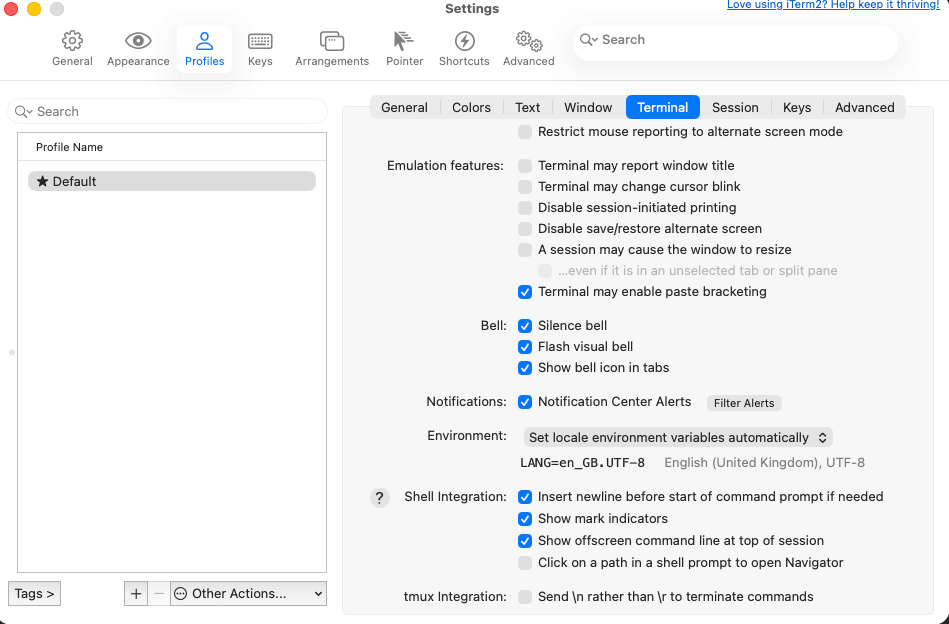
3. Enable Notification Center Alerts
In the Terminal settings panel, find the Notifications section and tick the checkbox labelled Notification Center Alerts. This is the master switch that allows iTerm2 to send macOS notifications.
4. Configure which alerts to send
Click the Filter Alerts button next to the Notification Center Alerts checkbox. A modal will appear with several options. Enable the following:
- Send "Bell" alert — triggers when the terminal bell rings (agents often ring the bell when they complete a task or need input)
- Send "Idle" alert — triggers when a session has been idle for a period, meaning the agent has stopped producing output and is likely waiting for you
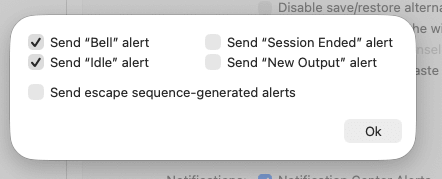
The other options — "Session Ended", "New Output", and escape sequence alerts — are less useful for AI agent workflows, but you can enable them if your use case requires it.
5. Configure bell preferences
Back in the main Terminal settings panel, configure the Bell settings to suit your workflow:
- Silence bell — tick this to prevent the audible beep every time an agent triggers the bell. Highly recommended if you are running multiple agents, unless you enjoy a cacophony of terminal beeps.
- Flash visual bell — provides a subtle visual flash instead of sound. Useful if you are looking at the terminal when the bell fires.
- Show bell icon in tabs — this is the most useful bell setting. When enabled, iTerm2 displays a small bell icon (🔔) in the tab title bar whenever a bell is triggered in that tab. This gives you a quick visual scan across all your tabs to see which agents need attention.
6. Verify macOS notification settings
For iTerm2 notifications to appear, macOS itself needs to have notifications enabled for the app. Open System Settings > Notifications, search for iTerm2, and ensure:
- Allow notifications is turned on
- Your preferred alert style is selected (Temporary or Persistent)
- Play sound for notification is toggled to your preference
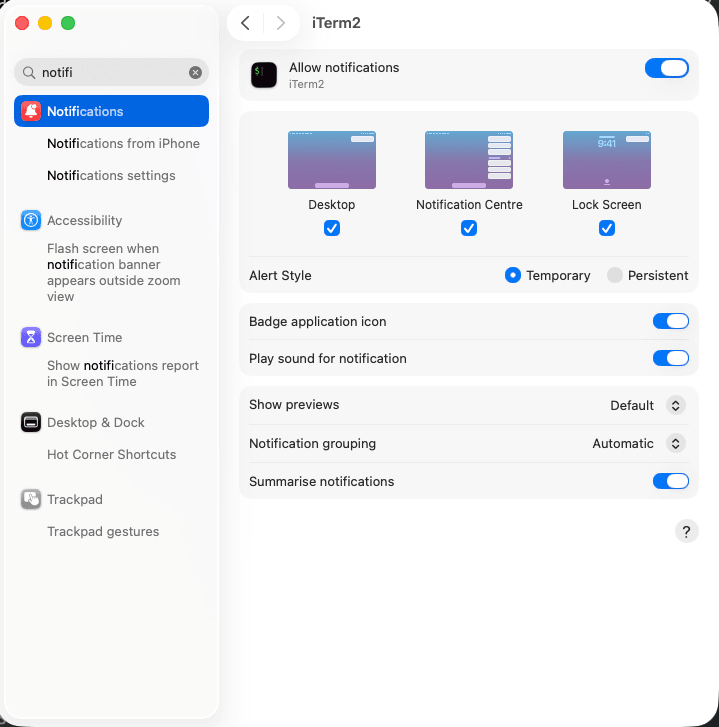
If you prefer notifications to stay on screen until you dismiss them, choose Persistent as the alert style. For a brief banner that disappears automatically, choose Temporary.
What it looks like in practice
Once configured, here is what you will see when an agent finishes its work and waits for input.
The tab indicator
When an agent triggers the bell, you will see a bell icon appear in the tab bar next to the session name. This is your at-a-glance indicator that something needs your attention in that tab.
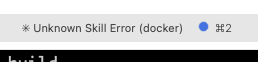
Compare this with a tab where no bell has been triggered — the difference is immediately visible:

The macOS notification
Simultaneously, macOS will display a notification banner. This appears even when iTerm2 is not the active application, so you will get alerted whether you are in your browser, an IDE, or any other app.
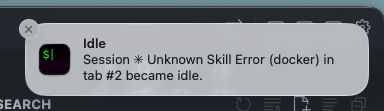
The notification shows you which session triggered it and why (idle, bell, etc.), so you know exactly which tab to switch to.
Fine-tuning your setup
Silencing the audible bell
If you have multiple agents running, the default terminal bell sound can become grating quickly. The "Silence bell" checkbox in the Terminal settings eliminates the audio while keeping the visual tab indicator and macOS notifications intact. This is the recommended configuration for multi-agent workflows.
Customising notification sounds
In macOS System Settings > Notifications > iTerm2, you can toggle Play sound for notification on or off independently from the terminal bell sound. This means you can silence the terminal beep but still get a notification sound from macOS — giving you a single, non-repetitive audio cue.
Alert on Next Mark
iTerm2 has another useful feature for long-running tasks: Alert on Next Mark. Press ⌥⌘A (Option + Cmd + A) after kicking off a long process, and iTerm2 will send a notification when the next shell prompt appears (the "mark"). This is useful for one-off commands like test suites or build processes, though it is less practical for ongoing agent conversations where you want persistent monitoring.
Alternative: Claude Code notification hooks
If you use a terminal other than iTerm2, or want more granular control over when notifications fire, Claude Code supports notification hooks. These are shell commands that execute in response to specific Claude Code events.
You can configure hooks in ~/.claude/settings.json with matchers for idle_prompt (Claude is waiting for your next instruction) and permission_prompt (Claude needs approval to run a command). Tools like terminal-notifier on macOS can then send native notifications from any terminal application.
The iTerm2 approach described in this article has the advantage of being terminal-native, requiring no additional software, and working with any AI agent or CLI tool — not just Claude Code.
Key takeaways
Configuring iTerm2 notifications takes under three minutes and eliminates the single biggest source of wasted time when working with AI coding agents in parallel: not knowing when they need your attention.
Enable bell and idle alerts, silence the audible bell, and let macOS notifications do the rest. Your agents are already fast — this ensures you are not the bottleneck.
References
Related insights
View all
Claude Code Hooks: Automate Your AI Coding Workflow
Claude Code hooks run shell commands automatically at specific points in the agent's lifecycle — auto-formatting files, blocking dangerous commands, sending notifications, and enforcing project rules without manual intervention.

Stop Hoarding Context: Why Fresh Sessions Make AI Coding Agents Better
Long AI coding sessions degrade output quality as the context window fills up. A practical guide to session management, the /clear command, and using CLAUDE.md to maintain persistent memory across fresh sessions.